Most marketing email you receive is watching you read it. Not the content — the act. The moment you open the message, roughly where you were, what you opened it on, and how many times you came back to it. None of that requires you to click a link or reply. Opening is enough.
The mechanism is a tracking pixel, and blocking it is one of the few privacy measures that costs you almost nothing.
What is a tracking pixel?
A tracking pixel is an image — usually a transparent 1×1 GIF, small enough to be invisible — embedded in the HTML of an email, typically in the header or footer. It isn’t stored in the message. It lives on the sender’s server, and the email contains a link to it.
When your email app renders the message, it fetches that image. That fetch is a request to the sender’s server, and it carries a unique identifier tied to you. The image itself is irrelevant. The request is the point.
What a tracking pixel actually tells the sender
More than most people expect from an invisible dot:
- That you opened it, and exactly when. Down to the second.
- How many times. Every re-open fires the pixel again.
- What you read it on — the
User-Agentreveals your device, operating system and email client. - Roughly where you were, derived from the IP address making the request.
- Whether you forwarded it, because the opens then come from somewhere new.
Marketing platforms aggregate this into an engagement profile. It’s also why a sender can tell that you read their message and chose not to reply — a detail plenty of people would rather not hand over.
How to block email tracking
The universal defence is simple, and it works in every email client: don’t let the message load remote images automatically.
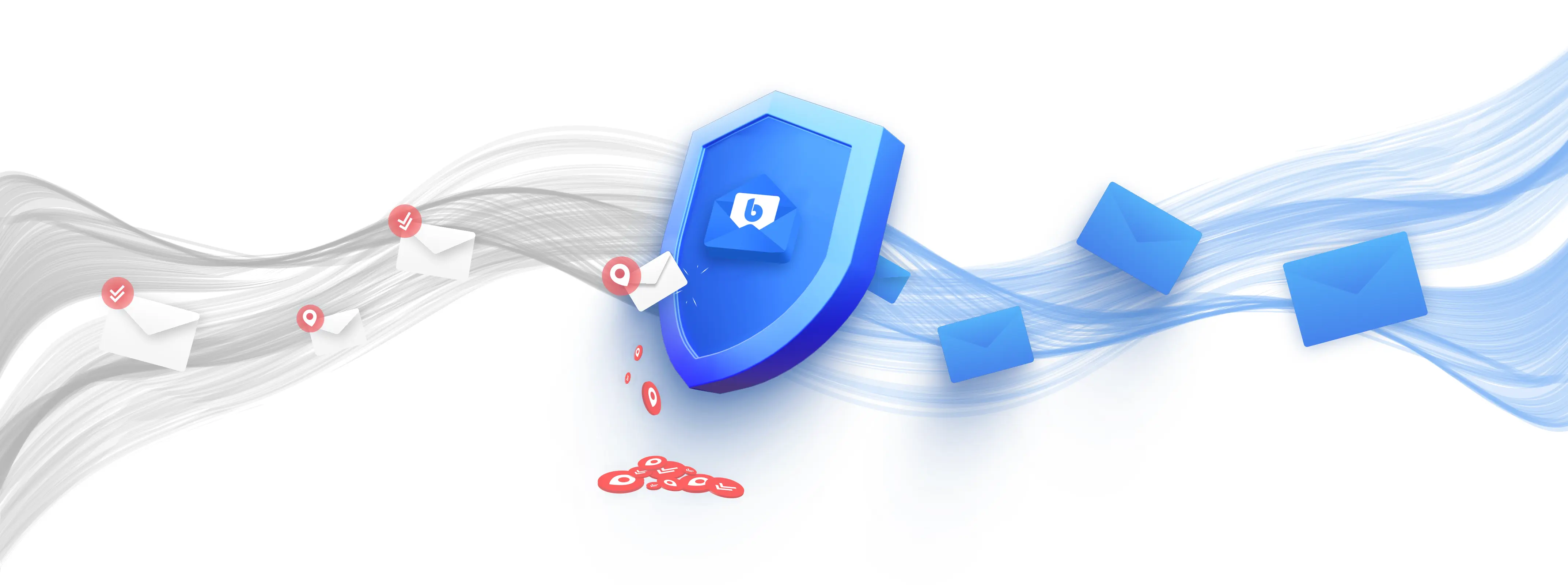
Because a tracking pixel has to be fetched from the sender’s server to work, an email that never requests remote content never fires the pixel. There’s no script to disable and no setting the sender controls. Blocking the fetch blocks the tracking.
Most clients bury this in settings, off by default, and phrase it as an image-loading preference rather than a privacy one — so the majority of people never find it. Some webmail providers take a different route and proxy images through their own servers, which hides your IP address but still tells the sender the message was opened.
How BlueMail blocks tracking pixels
BlueMail blocks them by default. You don’t have to find a setting.
When a message containing tracking images arrives, BlueMail intercepts the remote content before it loads and shows a notice in the message header: “tracking image blocked”, along with “tracking images were detected” and the option to download all images.
From there it’s your call:
- Read it as-is. The pixel never fires. The sender learns nothing.
- Load the images, if it’s a newsletter whose layout you actually want. One tap.
That’s the whole trade-off: messages that rely heavily on remote images need an extra tap to display fully. In exchange, the default is privacy rather than disclosure — which is the right way round, and the opposite of how most clients ship.
For the step-by-step in the app, see How to use the pixel blocker in BlueMail.
Where this fits
Pixel blocking is one layer. It stops passive surveillance, not active attacks — a message can be free of trackers and still be a phishing attempt, and a blocked pixel does nothing about a malicious attachment.
BlueMail handles those separately:
- Blue Guard — phishing detection, sender blocking and attachment quarantine.
- Attachment safety — risky files sandboxed until you approve them.
- Block list — stop a sender, or an entire domain, outright.
- Encryption — SSL/TLS, OAuth 2.0, S/MIME and PGP across transport and message.
Tracking pixels are the quietest of the group, which is exactly why they’re worth turning off. You’ll never notice them working, and you’ll never notice them stopping.