
Ak e-maily otvárajú s prázdnym obsahom — často krát po aktualizácii Androidu alebo aplikácie — bežnou príčinou býva Android System WebView vo vašom zariadení, komponent aplikácií na zobrazovanie webového obsahu, ktorý beží v beta alebo vlastnej zostave. Prechod späť na stabilnú verziu to vyrieši.
Všetky kroky uvedené nižšie sú nastavenia systému Android, nie BlueMail nastavenia.
Skontrolujte, či je nainštalovaný WebView v Beta verzii
Otvorte Nastavenia vášho zariadenia, choďte na Aplikácie a vyhľadajte WebView. Ak je nainštalovaný Android System WebView Beta (alebo vývojová/Canary zostava), je to pravdepodobná príčina.
Prepnúť späť na stabilný WebView
Ktorú verziu WebView Android používa, sa vyberá v Analytických možnostiach vývojára:
- Ak ešte nie je povolené Možnosti vývojára: otvorte Nastavenia, prejdite na O telefóne a poklepajte na Verzia zostavy sedemkrát.
- Choďte do Nastavenia, potom Systém, potom Možnosti vývojára a tapnite implementácia WebView. Na niektorých zariadeniach sú Možnosti vývoja priamo pod Nastavenia.
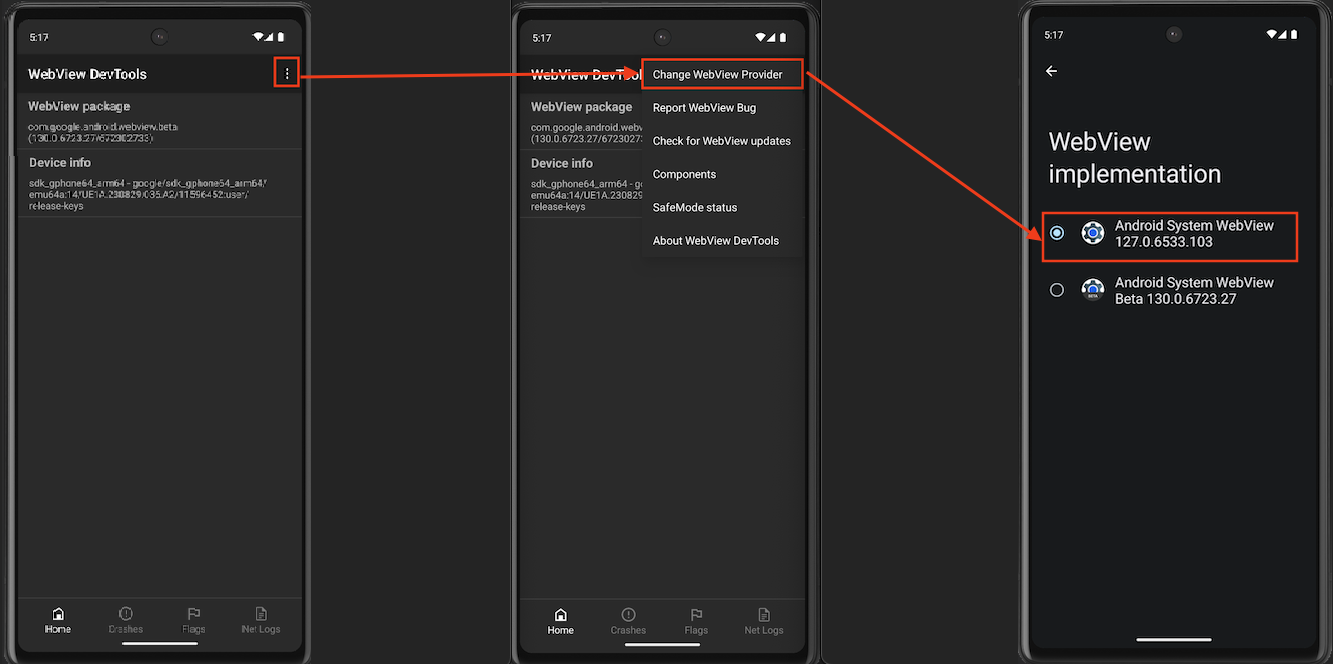
- Vyberte stabilný Android System WebView — položka bez slova Beta v názve, ako na poslednej obrazovke nižšie.
Ak vaše zariadenie má aplikáciu WebView DevTools, môžete sa dostať k rovnakému výberu aj odtiaľ — takto to ukazuje snímka obrazovky: tapnite trojbodové menu v pravom hornom rohu, vyberte Zmeniť poskytovateľa WebView a vyberte stabilný Android System WebView na obrazovke WebView implementácia.
Alebo odstráňte Beta verziu
Ak ste nainštalovali Android System WebView Beta z Obchodu Play, odinštalovanie tiež funguje: otvorte Play Store, nájdite Android System WebView Beta a tapnite Odinštalovať. Vaše zariadenie sa vráti na používanie stabilného WebView.
Po prepnutí úplne zavrite a znovu otvoríte BlueMail. Ak sa e-maily stále otvárajú prázdne, pošlite e-mail na support@bluemail.me s modelom zariadenia a verziou Androidu.
